Building Mac app Help Books.
For all my Mac apps of any notable complexity, I like to include a comprehensive (hand-written!) user manual. See the Octavo user manual and McKinley user manual for examples.
The documentation is available on the website for the relevant app, and also in the app as a Help Book (openable from the Help menu). These days, Help Books on MacOS open in the Tips app:
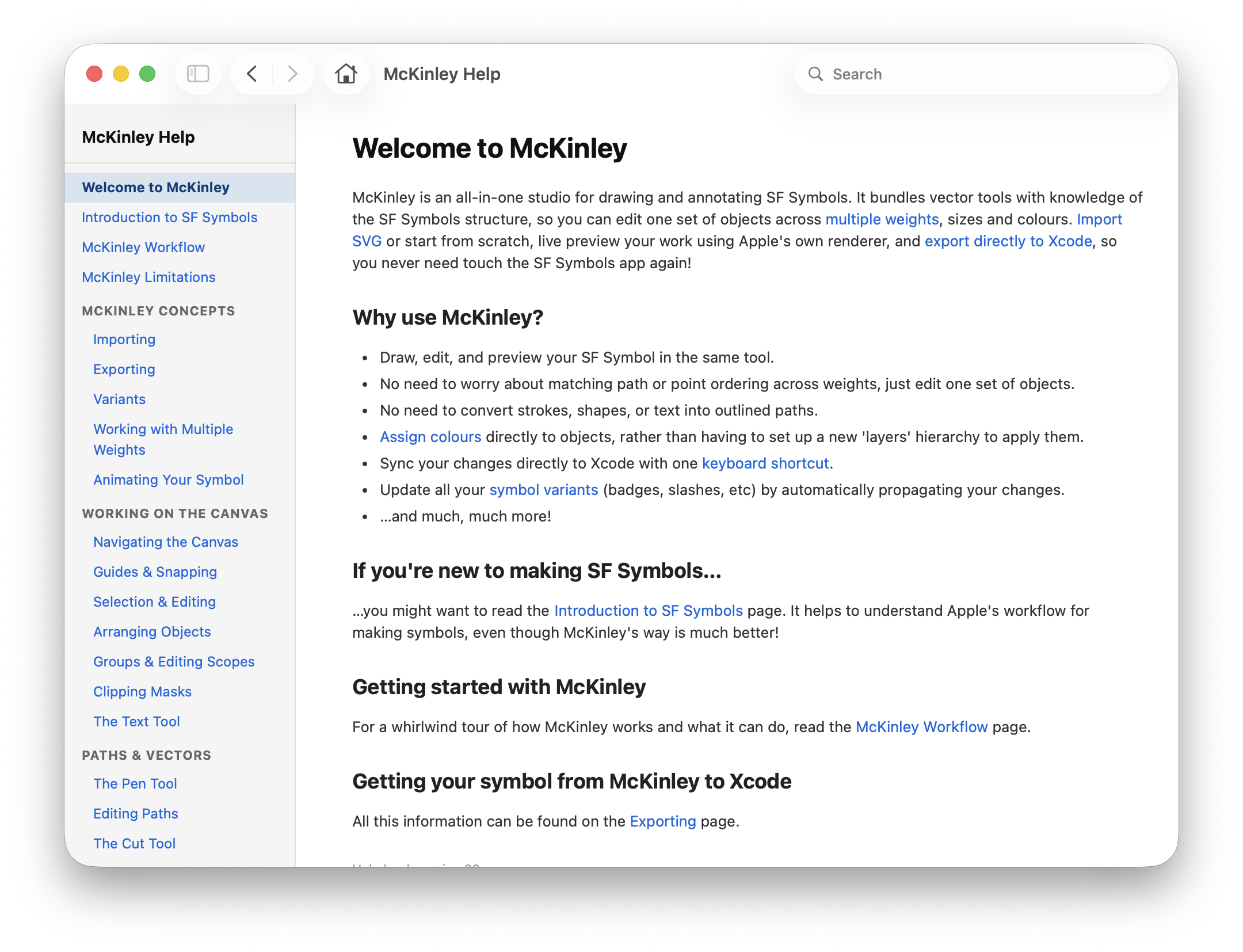
Apple's documentation for making these, such as Authoring Apple Help, is pretty old. If you look at the URL for that page, you'll see it's part of the Carbon documentation!
There are some third party tools to help. While planning this blog article I came across Helpbook Builder. I haven't tried it, but if I were starting afresh I would probably check it out!
In this article I'll share my process.
Structure
All my documentation is written in Markdown. (I use Typora to edit Markdown, fwiw.)
In each app's repo, I have a directory structure like this:
Docs/content/ contains the markdown files for my documentation. I use subfolders within this to structure my docs into sections.
Docs/assets/ contains all my images.
Docs/.helpbook-version is a file containing an integer that I bump every time I change the docs.
Docs/helpbook/ contains all the Help Book chrome, such as how to render the sidebar. (No, Apple doesn't do that for you!)
Then I have Docs/scripts/ for all the scripts that handle different bits of the process, and Docs/build/ as the directory where the help book output is placed. (I check this into the repo.)
Writing in Markdown
At the top of each document is some YAML front matter:
---
title: "Introduction to SF Symbols"
section: "root"
order: 1
helpAnchor: "introduction"
description: ""
---
They're mostly self explanatory. Section is to organise the pages within the help sidebar. My convention is that the top level section is called root. I also have a convention that each subfolder in the directory structure corresponds to its own help section.
order is the page's order within that section.
helpAnchor is Apple's way for an app to open a help book to a specific page. I don't make significant use of this yet, but it could allow a dialog within the app to have a Help button and open the correct page of help when pressed.
After the front matter, the rest of the document is just my help page in Markdown format. A few things to note:
- Links to other pages should be relative. I insert them as standard Markdown links, like
[variants](../concepts/variants.html). - Image links are also relative, and refer to the images directory (even though I'm putting images in the
assetsdirectory). Like this:
Sections
I've already mentioned putting each section in its own directory, and referring to them in the front matter of the help pages.
There's one more thing we need, and that's a way to give them human readable titles and specify their order. Within each section subdirectory there's a file called _section.yaml, containing:
title: "The Inspector"
order: 4
This is literally the title for the section that's shown in the sidebar, and what order it goes in.
The script that makes it all work
I have a script build-helpbook.mjs that does all the work. I execute it with node.
(Yes I used AI to help me write this script. I think that's a reasonable use of AI: the actual documentation itself is all written by me, but the infra to get it in front of users was AI-assisted.)
If you want to see the whole script, go here. Here's roughly what it does:
- Cleans the
Docs/buildfolder, and recreates the structure for the help book bundle. - Reads
helpbook/template.html, the template for each help page. - Collects the root level markdown files, and each section directory (with its
_section.yamlfile), and each page within the section directory. - Sorts root pages, sections, and pages within each section.
- Writes a
js/toc-data.jsfile (which just lists all the sections and pages in a JavaScript array of dictionaries). - Automatically bumps the version integer in
Docs/.helpbook-version - Renders each page, by filling in the template's
{{TITLE}},{{EXTRA_META}}and{{CONTENT}}fields. It uses themarkedJavaScript library to turn the markdown into HTML. - Special case the entrypoint page. (I just hardcode it in the script, and match the help anchor for the relevant page.) This needs specifying in the help book Info.plist, among other things.
- Copy images (from assets to the help book bundle's images directory).
- Runs
hiutil -I corespotlightto generate a help book index.
A Help Book is its own bundle, and therefore has its own Info.plist. The generated Info.plist for the Help Book contains a bunch of fields:
| Key | Value |
|---|---|
CFBundleIdentifier |
com.doubleandthrice.mckinley.help |
CFBundleName |
McKinley Help |
CFBundlePackageType |
BNDL |
CFBundleSignature |
hbwr |
CFBundleDevelopmentRegion |
en |
CFBundleVersion / CFBundleShortVersionString |
{{BUNDLE_VERSION}} (both) |
HPDBookAccessPath |
pages/welcome.html |
HPDBookIndexPath |
McKinley.cshelpindex |
HPDBookTitle |
McKinley Help |
HPDBookType |
3 |
HPDBookKBProduct |
McKinley |
HPDBookIconPath |
empty |
To get the Help Book into the app, there's a Copy Bundle Resources build phase in my Xcode target. The .help bundle is included in the Xcode project as a folder reference.
In the app's Info.plist, we specify the Help Book:
<key>CFBundleHelpBookFolder</key> <string>McKinley.help</string>
<key>CFBundleHelpBookName</key>   <string>McKinley Help</string>
Opening Help from in the app
The menu item to open the main help entry point calls NSApplication.showHelp(_:).
To jump to a specific help page (e.g. from a help button in a specific screen in the app), use:
let bookName = Bundle.main.object(forInfoDictionaryKey: "CFBundleHelpBookName") as? String
NSHelpManager.shared.openHelpAnchor("licensing", inBook: bookName)
The sidebar (table of contents)
Apple's Help system is supposed to be able to generate a sidebar that's a table of contents for your help. However, unless I'm mistaken, third parties cannot actually make use of this. (I'm not sure if it's a longstanding bug or by design.) So we make our own sidebar via JavaScript.
In the past, help was rendered in an app called Help Viewer, which used a really old version of WebKit. This is no longer an issue: as of MacOS 15 Sequoia, help is rendered in the Tips app, which uses modern WebKit. (Note that MacOS 13 and 14 had renamed Help Viewer to Tips, but in those versions it was the same old app. More info here.)
The JavaScript I use for showing the table of contents is here.
Tips offers a toolbar button to hide/show the Table of Contents. Initially it seemed like we should be able to hook into this to hide/show our custom sidebar, however I couldn't figure out how to get that to work. There's a comment at the top of the script explaining the things I tried! So I just leave the sidebar always showing.
Getting it on the website
My websites are in a separate repo. I use Astro to make static websites. Whenever I rebuild a website, it pulls the latest Help automatically.
In my site's config.ts, I define a content layer collection for the help:
// The docs collection reads straight out of the McKinley repo's help content.
const docsCollection = defineCollection({
  type: 'content_layer',
  loader: glob({ pattern: '**/*.md', base: '/Users/amyworrall/Projects/CanvasApps/McKinley/Docs/content' }),
  schema: z.object({ title: z.string(), section: z.string(), order: z.number(),
                     helpAnchor: z.string(), description: z.string().optional() }),
});
(Yes I'm using an absolute path to refer to another repo here. Arguably I should make this more resilient, maybe with a submodule. But for now I just check out the repos at the same path on each of my machines!)
A content layer collection is Astro's mechanism for loading in a set of content in a way that's queryable. I use the built in glob() loader to have it read all files that match a certain filename. The glob() loader when applied to markdown files knows to extract the front matter. Then the schema tells Astro which fields to expect in the front matter.
The instructions for Astro to render a docs page are in src/pages/docs/[...slug].astro. This weird filename is Astro's routing syntax: it uses a parameter called slug to generate part of the URL to the page.
You can read my Astro file here.
An Astro file includes JavaScript code (run at build time) and an HTML template. In the JavaScript code, I have a function getStaticPaths(), which loads every help page via getCollection("docs") (which refers to the docs collection I defined above). It then builds the sidebar structure by also reading the _section.yaml files. The getStaticPaths() function then returns one object per page to build.
Each of these objects has a params dictionary (which contains the slug that we referred to earlier, controlling the help file's URL), and a props dictionary. In the props dict is a doc object, which is something Astro knows how to render content for.
I'm not going to go into further detail in this article about how Astro is set up, but hopefully you get the idea about how I can have the website generation code reading from the same source as the help book generation script.
Getting macOS to see an updated help book
This is one final gotcha I should mention when working with help books. If you implement all of this, run the help book script, build and run your app from Xcode, you'll find that your app is displayng an out of date version of your Help Book.
MacOS caches Help Books aggressively. Getting it to see an updated vesion is somewhat of a black art. The most reliable way I can find is to copy your built app into the Applications folder. This tends to trigger a cache update.
You also need to make sure:
- Update the
CFBundleVersionandCFBundleShortVersionStringof your Help Book. That's why I'm automating this with the.helpbook-versionfile incremented every script run.- As a way to check that I'm seeing the latest version, I also display the version on the help index page.
- My script has a
--flushcommand, which deletes~/Library/Caches/com.apple.helpd,~/Library/Caches/com.apple.tipsd,~/Library/HTTPStorages/com.apple.helpd, and~/Library/HTTPStorages/com.apple.tipsd, then doeskillall helpd,killall tipsd,killall Tips. This is usually overkill, but sometimes things just seem to get stuck.
Suggestions Welcome!
I'm not saying my process is perfect! If anyone has any tips or suggestions, I'd love to hear them: feel free to leave a comment (or toot me on Mastodon).